My Assets: import your asset list and alert on it
My Assets turns an export from your RMM, scanner or SIEM into alerts. You upload a list of hosts and the software on them; ThreatCluster works out which vendors and products it names, and keeps two alert rules on that list for you. When a CVE in one of your products is exploited, or a story about one of them scores high, you hear about it.
UploadCheck the matchesThe two rulesKeep it currentFrom the API
1. Upload your list
Open Settings → My Feeds and find My Assets. Choose Import asset list and pick a CSV.

Most exports work as they are. Columns named like hostname, publisher (or vendor), application (or product) and version are recognised, and other columns are ignored. If you are starting from nothing, use the CSV template. A file can be up to 2 MB and 500 assets.
Hostname,Publisher,Application,Version
KA-FW01,Fortinet,FortiGate FortiOS,7.2.8
KA-VPN01,Ivanti,Ivanti Connect Secure,22.7R2
KA-SRV02,Veeam Software,Veeam Backup & Replication,12.1.2
KA-SRV02,ConnectWise,ScreenConnect,23.9.8
A list is only as useful as its software column. A list of hostnames alone tells ThreatCluster nothing it can alert on.
2. Check what it matched
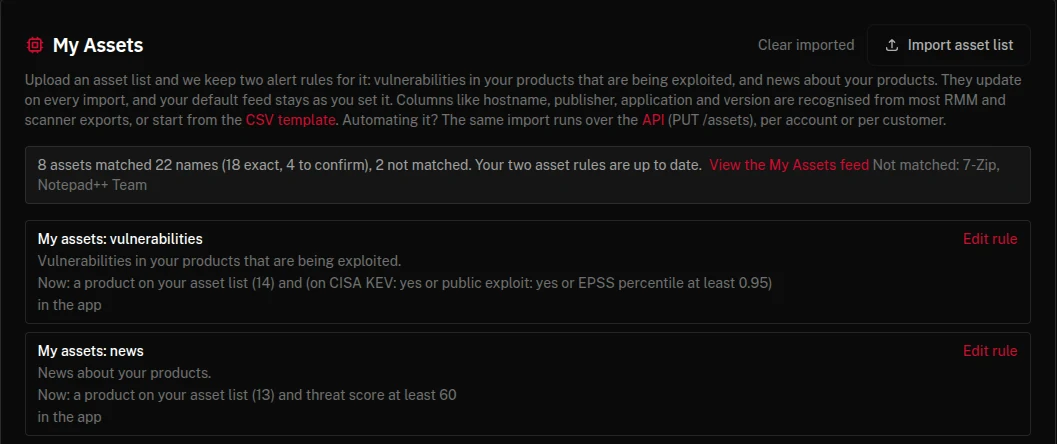
As soon as the file is read, the card says how many names it matched and which it could not place, and shows the two rules it has made.
Under the rules is every name the list matched, with its type. Most are exact. A few are best guesses, marked in amber with confirm. Hover over one to see the line in your file it came from.
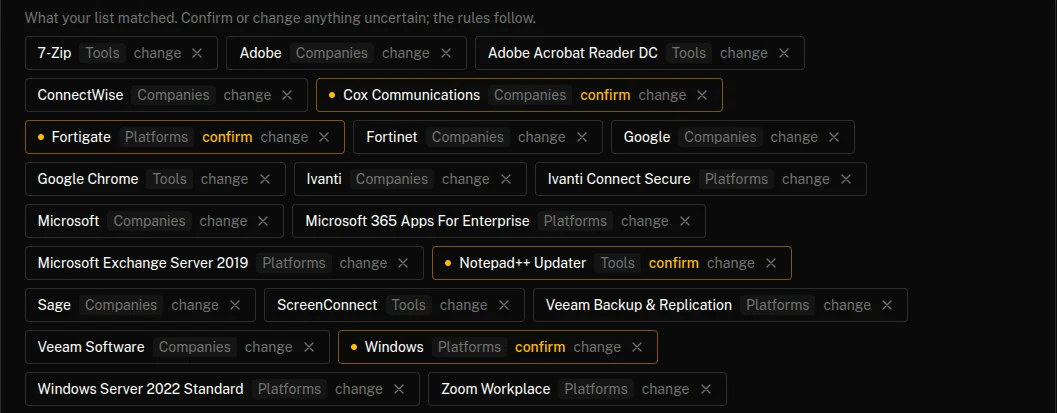
- Confirm a guess that is right. It turns into an ordinary match.
- Change a guess that is wrong: search for the right product or company and pick it, or keep the text as a custom keyword. Future imports learn the correction.
- Remove (×) a match you do not want alerts for.
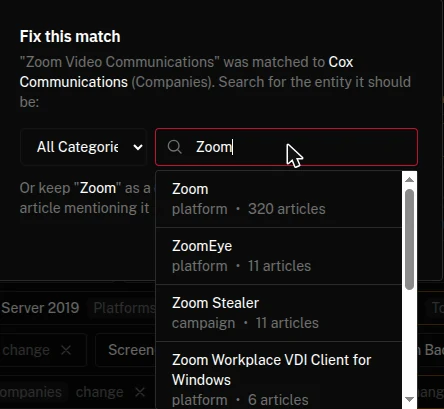
The rules follow your corrections straight away.
3. The two rules it keeps
- My assets: vulnerabilities: new or rescored CVEs in your vendors and products that are on CISA KEV, have a public exploit, or are in the top 5% by EPSS. This is the one that tells you to patch.
- My assets: news: stories scoring 60 or more that are about one of your products. Platforms that are in the news every day, such as Windows, are left to the vulnerabilities rule so this one stays readable.
Edit rule opens either one in the rule builder, where you see it in plain English and what it would have caught in the last 30 days.
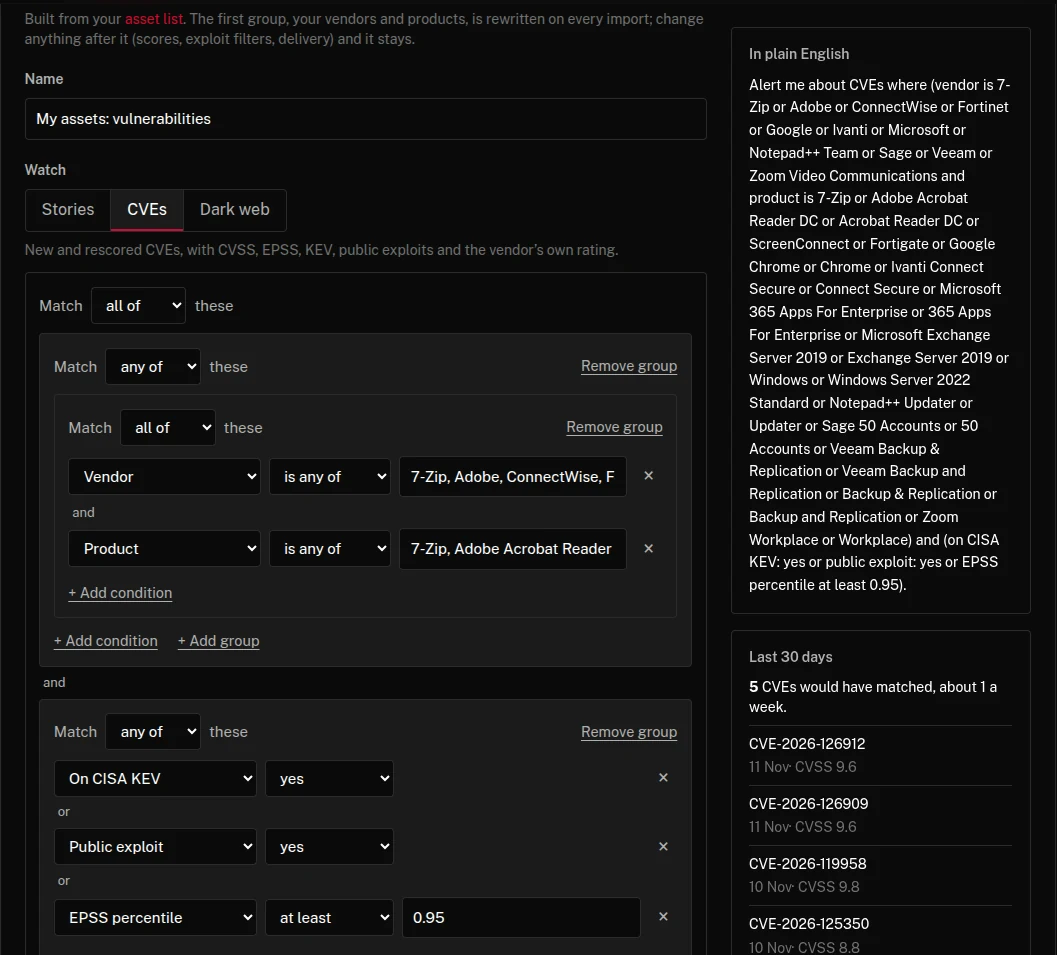
Both rules alert in the app to begin with. Turn on email or a webhook in the builder, raise the score, add a filter, or pause one. They do not count towards your plan's rule limit, and your default feed is never changed by an import.
4. Keep it current
Import again whenever your estate changes. Each import replaces the list and rewrites only the first group of each rule, the vendors and products. Delivery, thresholds, extra conditions and a pause you set stay as they are. Clear imported removes the list, its matches and both rules.
Working for clients? Switch to a customer first (see Customer feeds) and the import, the matches and the two rules belong to that customer.
From the API
The same import runs over the API, so an RMM job can keep the list fresh: PUT /api/public/v1/assets replaces the list, GET reads it back and DELETE clears it. Add customer_id to work on a managed customer. See the assets API reference.